Set up a standard funnel
A standard funnel shows how users move through key actions in your app, such as creating an account, playing content, viewing an ad, or making a purchase. Use it to see how many users reach each step and where fewer users continue.
In this guide, you'll prepare your app events, create a funnel, review its results, and update its settings. Standard funnels can include any event you receive from the justtrack SDK. You can create as many funnels as you need.
Before you begin
- Integrate the justtrack SDK and send the events you want to analyze.
- Define the actions that make up your funnel and the event conditions that identify each action.
- Use consistent event names and dimension values so the events match your configured steps.
- Use an admin or manager role to create, edit, or delete funnels. See User Roles and Permissions.
For platform-specific SDK calls, select your platform and version in Track events. The examples below describe event data; adapt them to your app's tracking.
Prepare your app events
Each funnel step matches an event and, optionally, conditions on its dimensions. Choose the actions you want to compare before configuring the funnel.
For example, a music app could use these steps:
| Step | User action | Event | Condition |
|---|---|---|---|
| 1 | Create an account. | account_created | No additional condition. |
| 2 | Play a song. | song_played | No additional condition. |
| 3 | Add a song to a playlist. | playlist_song_added | No additional condition. |
| 4 | View an ad. | jt_ad | jt_action equals show. |
The first three event names are examples of custom events you define in your app. jt_ad is the analytics event name for the SDK's predefined JtAd event. Use the names and values your app sends.
With these steps, you can compare how many users create an account, play content, add it to a playlist, and see an ad. You can extend the funnel with other actions, such as ad clicks or purchases.
When to use a progression funnel
For game levels, challenges, or other stages, use a progression funnel when you need starts, completions, failures, and average completion time. Progression funnels use only jt_progression events. Standard funnels let you combine different event types.
Create a standard funnel
- Select the app you want to analyze. In the App Menu, open Funnels.
- Click Create funnel. In Name your funnel, enter a name and, optionally, a description.
- In Select the type, choose Standard funnel. Confirm the app and platform used to choose the available events.
- In Add steps, select the event for your first step.
- To filter that event, enable Conditions, select a dimension, and enter the value it must match. Add more conditions if needed.
- Repeat for the remaining steps and arrange them in the order you want to analyze. You can configure up to 50 steps.
- Click Create funnel, then open the saved funnel to review its data.
The app and platform selection filters the available events during setup. You can still view the saved funnel with another app.
You can't change the funnel type after creation. Changing the app or platform while configuring a funnel resets the configured steps. You can't add two identical conditions to the same event.
Example: count users who see an ad
Select jt_ad as the step's event, enable Conditions, select jt_action, and enter show. This step matches ad show events. To analyze ad clicks in another step, use jt_ad with jt_action set to click.
Review your results
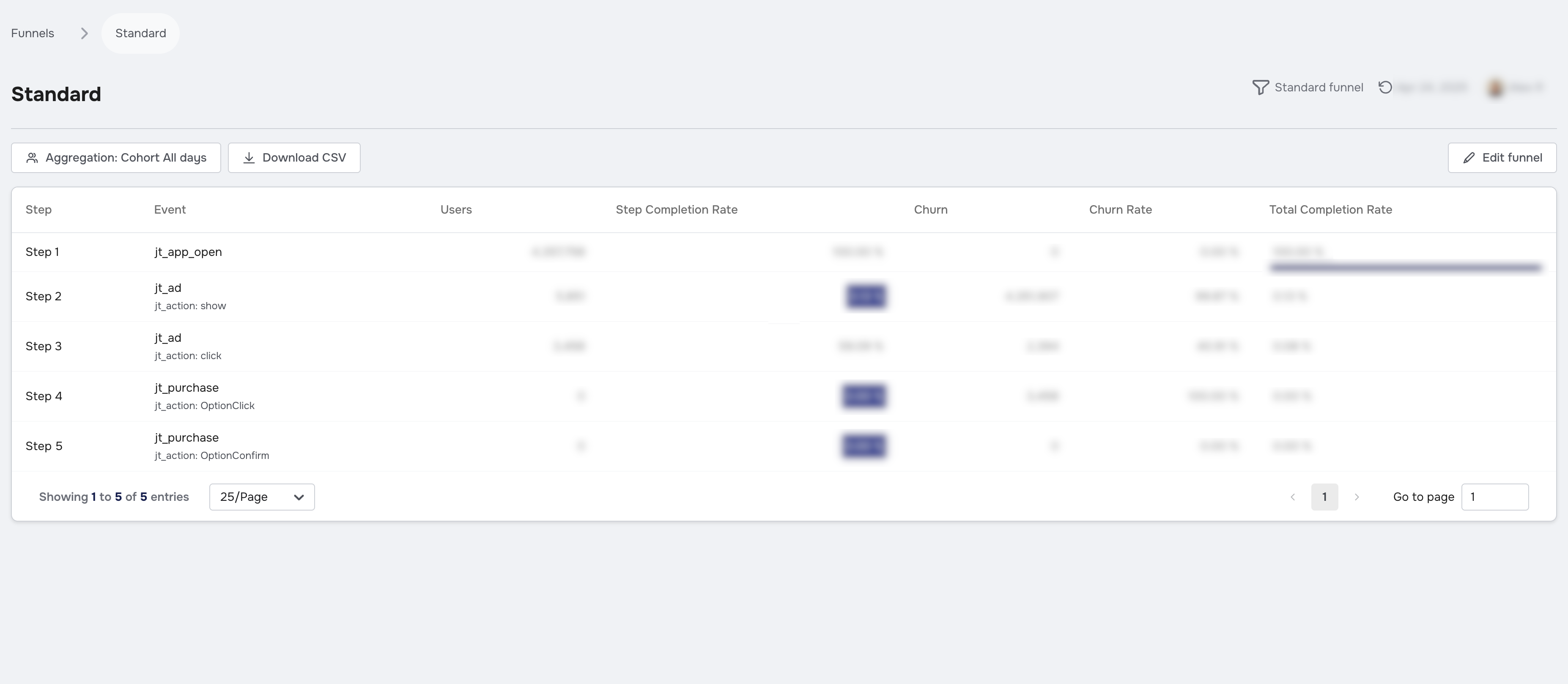
In the App Menu, open Funnels and click your funnel to open its data view. Use the same app, segments, date range, and aggregation settings when comparing results.
Understand how steps count users
A user contributes to a step only if they also match every preceding step. If they don't match a required step, they don't contribute to any later step. Each step counts unique users, so repeated events from the same user don't increase that step's Users count.
The configured order determines which users remain eligible at each step. It doesn't require their events to have happened in that chronological order.
Example: why changing the step order changes the results
Imagine 90 users create an account. Of those users, 75 play a song, and 50 of those listeners add a song to a playlist.
| Step | Event | Users |
|---|---|---|
| 1 | Create an account. | 90 |
| 2 | Play a song. | 75 |
| 3 | Add a song to a playlist. | 50 |
Now reverse the steps. In this example, all 50 playlist users also played a song and created an account, and no other users added a song to a playlist.
| Step | Event | Users |
|---|---|---|
| 1 | Add a song to a playlist. | 50 |
| 2 | Play a song. | 50 |
| 3 | Create an account. | 50 |
The first step now limits the funnel to those 50 playlist users. The other listeners and account holders aren't eligible for later steps because they didn't match the new first step.
Read the standard funnel metrics
In the formulas below, Uᵢ is the user count at the current step, Uᵢ₋₁ is the count at the preceding step, and U₁ is the count at the first step.
| Metric | Meaning |
|---|---|
| Users | Users who match this step and all preceding steps. |
| Step Completion Rate | Share of the preceding step's users who match this one: Uᵢ / Uᵢ₋₁ × 100%. |
| Churn | Users counted at the preceding step who don't match this one: Uᵢ₋₁ − Uᵢ. |
| Churn Rate | Share of the preceding step's users who don't match this one: (Uᵢ₋₁ − Uᵢ) / Uᵢ₋₁ × 100%. |
| Total Completion Rate | Share of the first step's users who match this one: Uᵢ / U₁ × 100%. |
Example: calculate completion and churn
Using the first table above, the playlist step has 50 users, compared with 75 at the preceding step and 90 at the first step:
- Step Completion Rate:
50 / 75 × 100%, or about 66.7%. - Churn:
75 − 50, or 25 users. - Churn Rate:
25 / 75 × 100%, or about 33.3%. - Total Completion Rate:
50 / 90 × 100%, or about 55.6%.
Interpret the results
High Churn Rate
Inspect the transition to that step. Missing tracking, an optional action, or users who haven't reached it can all contribute. Funnel churn alone doesn't establish that a user uninstalled the app or permanently stopped using it.
Low Total Completion Rate
Review the preceding steps to find where the user count drops. Check whether each step belongs in the path you want to analyze and whether its event conditions match your tracking.
Edit or delete a funnel
Use an admin or manager role for these actions.
Edit a funnel
- Open Funnels in the App Menu.
- Open the funnel's Action menu and click Edit. You can also open the funnel's data view and click Edit.
- Update the name, description, or step configuration in the Edit funnel page and save your changes.
The setup controls follow the same process as creating a funnel. You can't change the funnel type. Check the app and platform before changing them, because changing either resets the configured steps.
Delete a funnel
Open Funnels in the App Menu, open the funnel's Action menu, and click Delete.
Validate your tracking
Check representative events in Live Events on the app's SDK integration page before relying on the funnel. The SDK guide describes where to find them.
Why doesn't my standard funnel show any data?
Confirm that the app sends the selected events, that their dimension values match the step conditions, and that the selected app, date range, and segments include the intended data. Check the first step first: users must match it to enter the funnel.
Why does a later step show fewer users than the event report?
Check every preceding step. An event report can include users who triggered an event but didn't match the earlier funnel steps. Those users aren't eligible for that funnel row.
Why don't repeated events increase the Users count?
Users counts unique people. Multiple matching events from one user don't represent additional users at that step.
Why did my configured steps disappear?
Changing the app or platform during setup resets the steps. Confirm those selections before adding your event conditions again.
Next steps
- Set up a progression funnel to analyze stage starts, completions, failures, and completion time.
- Track events for platform-specific implementation details.
- Explore data views for other ways to analyze your app data.