Upload ad spend with a CSV
You can upload cost data for a custom partner with a comma-separated values (CSV) file. In this guide, you'll download the sample CSV, choose a partner, upload your file, and view previous uploads.
Before you begin
Make sure you've connected a custom partner to your app. Ad Spend Upload supports custom partners only.
Navigate to ad spend uploads
In the Organization Menu, click Data Upload > Ad Spend Upload:
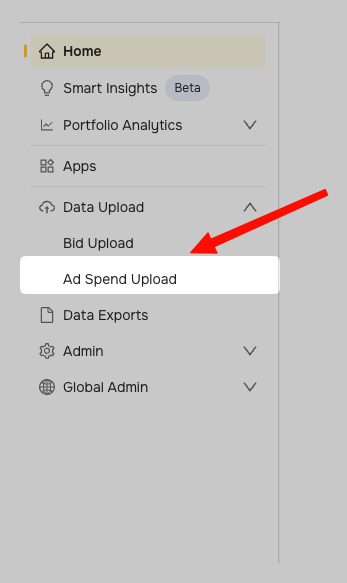
Here, you can:
- Download the sample CSV with the required format.
- Upload your CSV.
- View historical ad spend uploads.
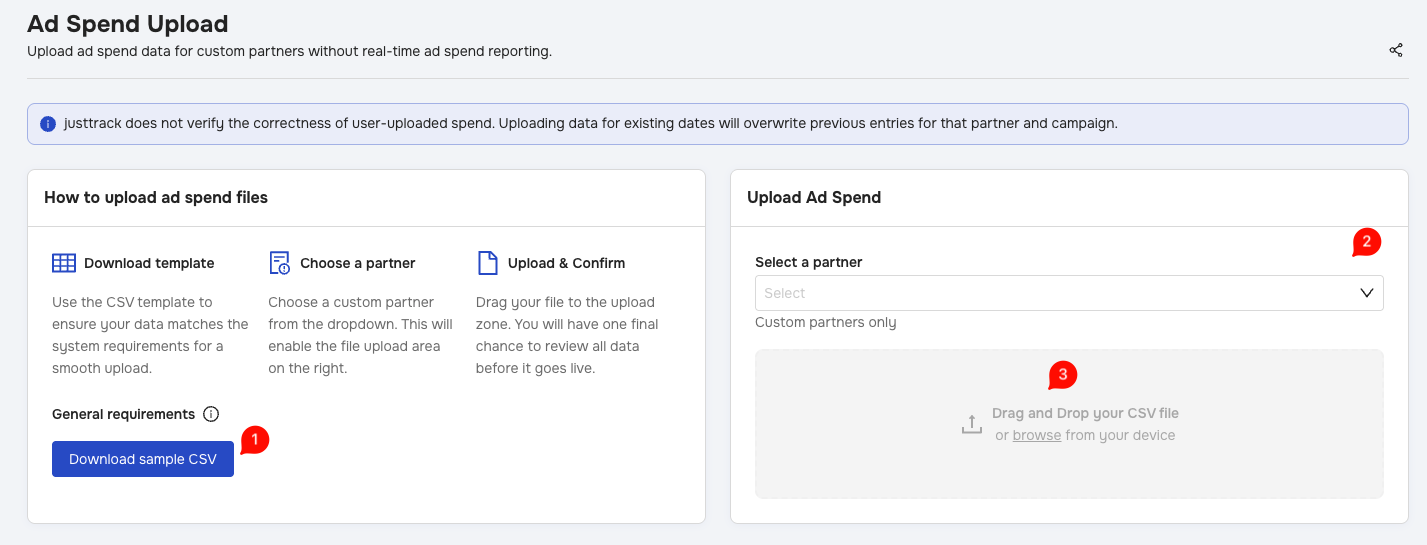
Download the sample CSV
If you don't have a CSV in the required format, click Download sample CSV (marker 1). Fill in the template with your cost data.
Use the sample CSV as your reference for the required columns and format.
Upload your CSV
- Under Select a partner (marker 2), choose the custom partner for your upload. This enables the file upload area.
- Drag and drop your CSV into the upload area (marker 3), or click browse to choose a file from your device.
- Review your data before confirming the upload.
justtrack doesn't verify the accuracy of the cost data you upload. If you upload data for dates that already have entries, you'll overwrite the previous entries for the same partner and campaign. Check your data before confirming the upload.
View historical uploads
Scroll to the History section on the Ad Spend Upload page to view your previous ad spend uploads.