Connect an App
This guide shows you how to create a new app in justtrack.
Creating an app is required before you can integrate the SDK or track any data.
What this step does
- Creates your app in justtrack
- Generates the API keys required for SDK integration
- Unlocks all further setup steps
Who this is for
Developers and account administrators setting up justtrack for the first time.
Before you begin
You must have one of the following roles:
- Admin
- Manager
Only users with these roles can create and edit apps.
For more information, see User Roles and Permissions.
Step by step
1. Open the Apps page
In the main menu, go to:
Admin → Apps
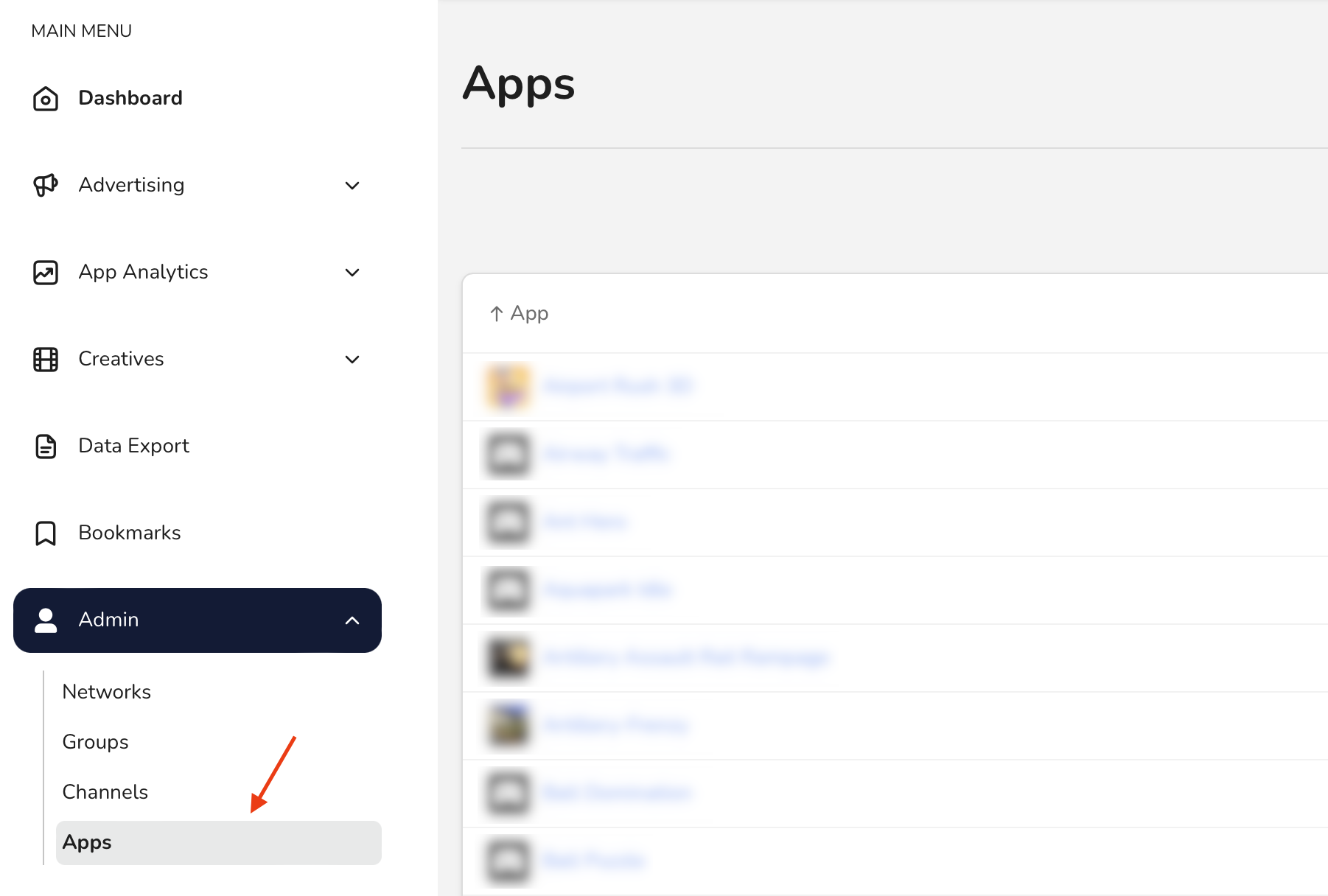
This opens the app list, where all existing apps are displayed.
2. Add a new app
Click Add app.

This opens the App Wizard, which guides you through the app configuration.
3. Complete the App Wizard
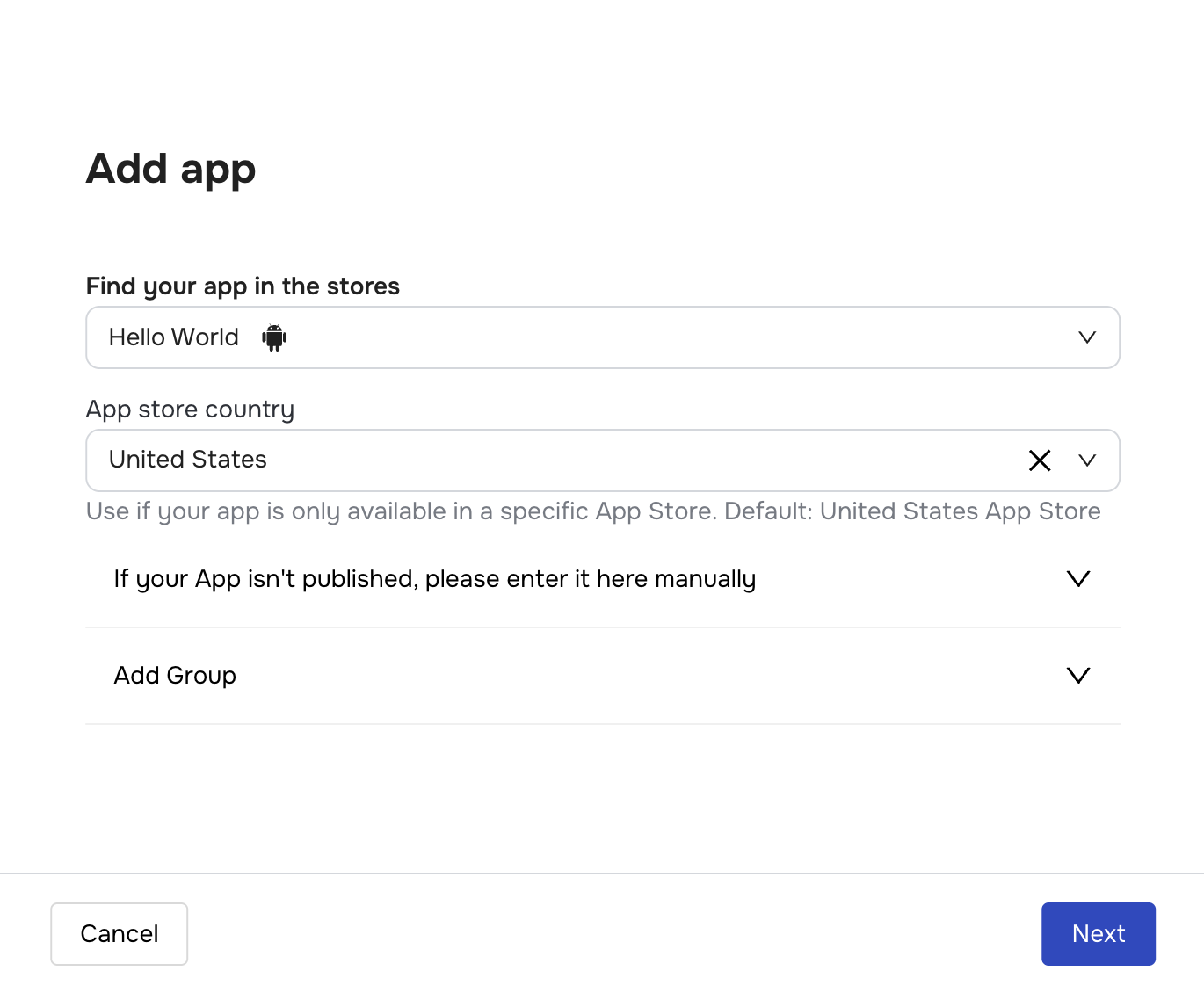
Step 1. Select the app platform
Use the App Wizard to add your app and confirm its details.
Search for your app in the wizard. justtrack automatically loads the app details from the App Store or Google Play.
- Select your app from the search results
- Review the app information
- Click Add app to continue
If your app is available on multiple platforms, repeat this step for each platform.
For example, add iOS first and then add Android.
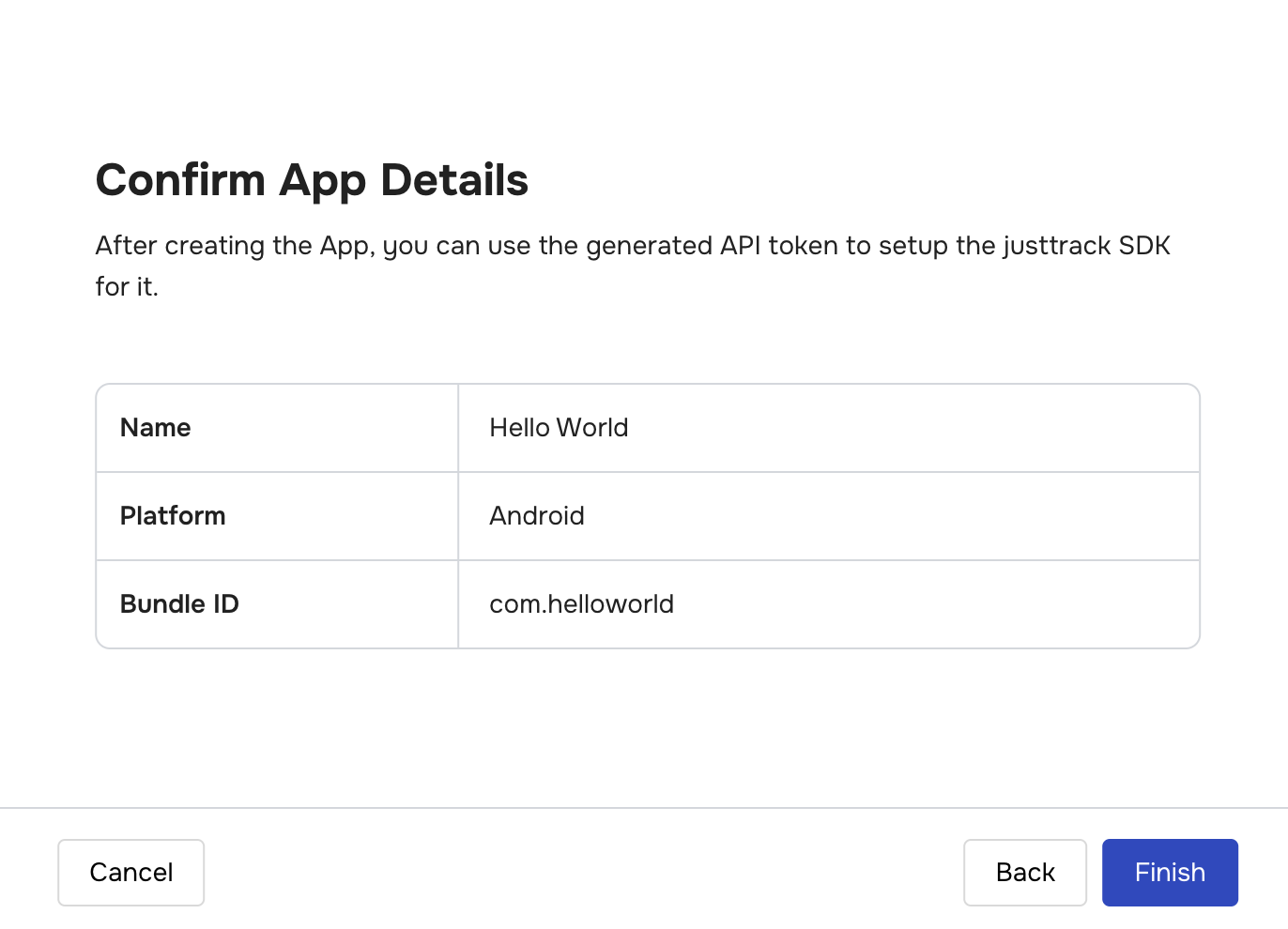
Step 2. Confirm the app details
Review the app details shown in the confirmation step.
If everything is correct, click Add app to finish the wizard and create the app.
If your app cannot be found in the store search, you can add it manually by entering the app name and Bundle ID or Package Name.
Confirm the details Finish the wizard to create the app.
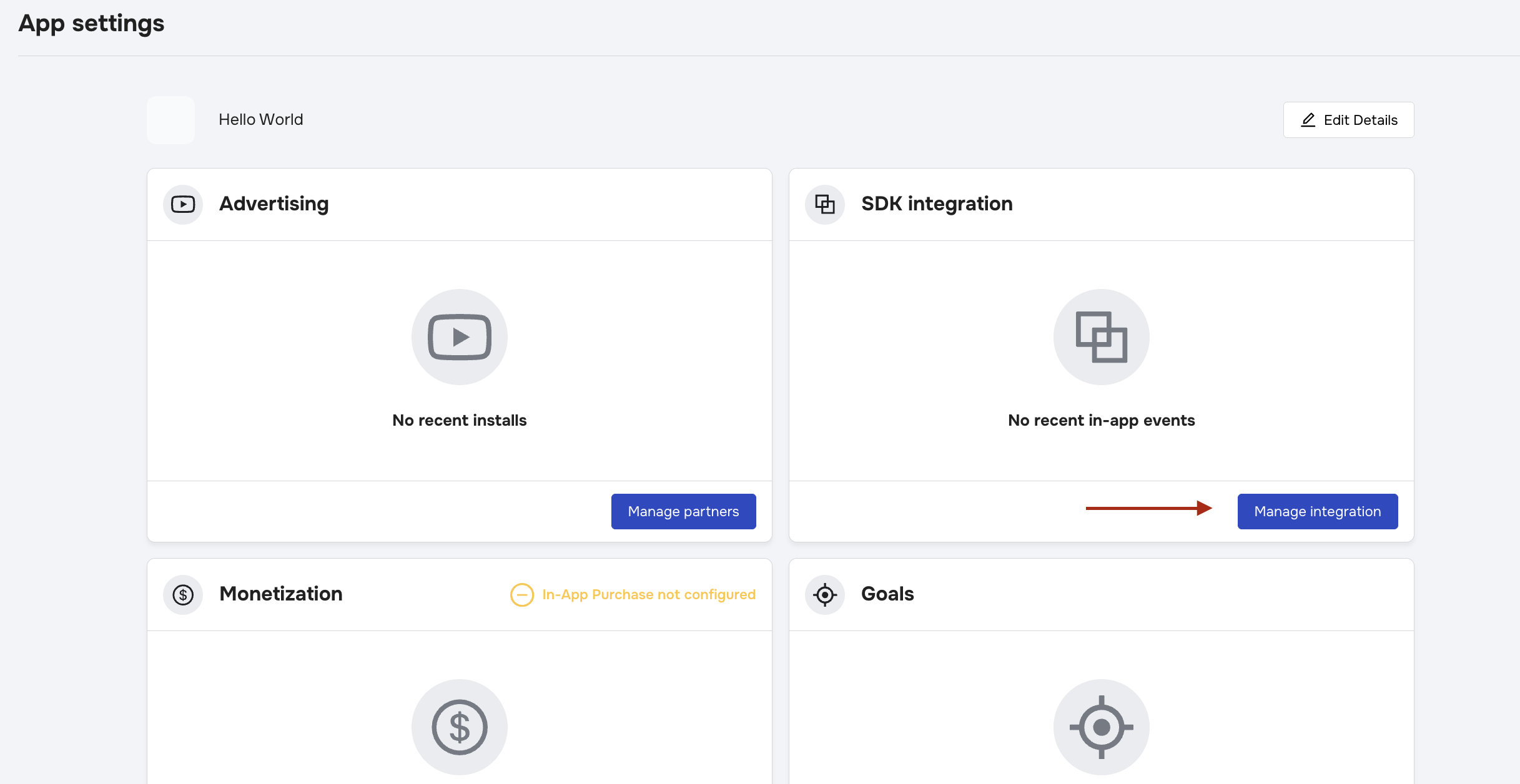
4. Open the SDK integration section
After the app is created:
- Open the app details page
- Navigate to the SDK Integration section
5. Copy the API keys
In the SDK integration section:
- Locate the API keys
- Copy the keys for your platform
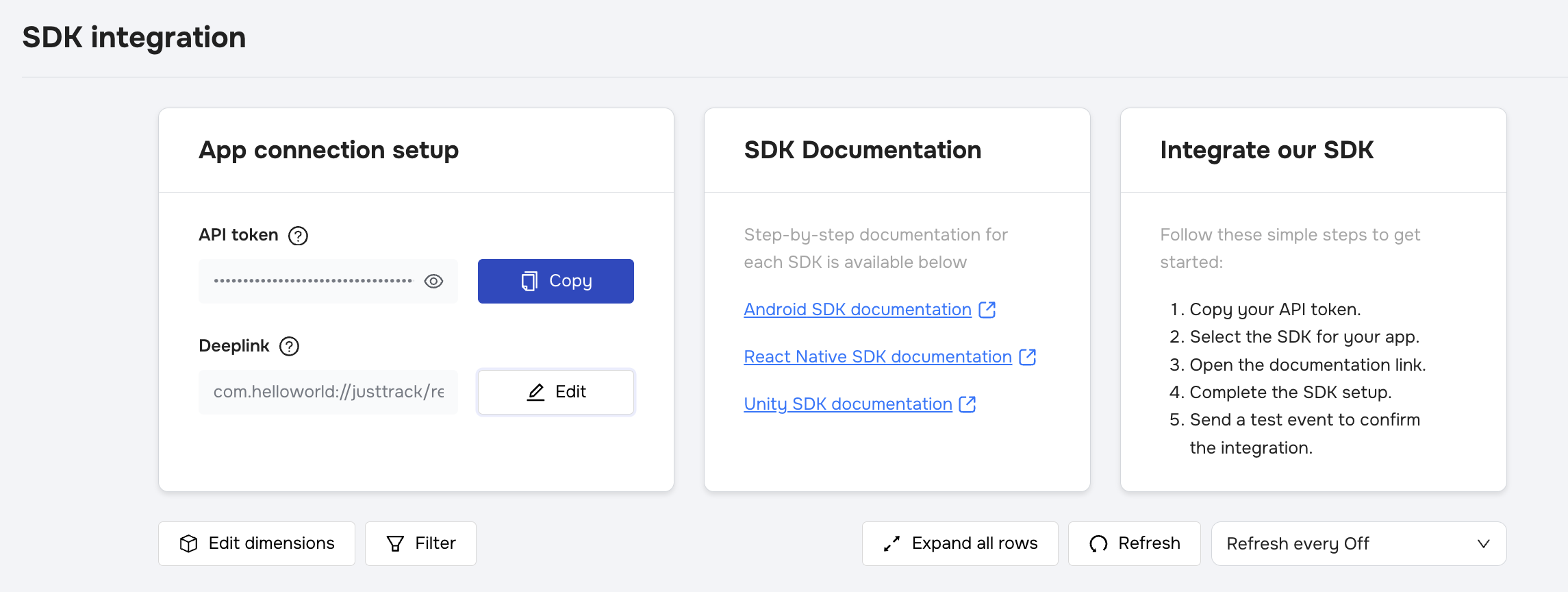
You will need these keys when integrating the SDK.
You’re done when
- Your app appears in the app list
- You can open the SDK integration section
- API keys are visible and accessible
Next step
👉 Set up the SDK
Continue with the SDK setup to start tracking installs and in-app events.