Track Your First Campaign
This guide shows you how to start tracking advertising campaigns in justtrack.
You will connect an integrated ad partner, generate a tracking URL, and verify that campaign data appears in the Statistics page.
What this step does
- Enables attribution for advertising campaigns
- Generates tracking URLs for your ad partner
- Makes campaign performance visible in justtrack
Who this is for
User acquisition, growth, and marketing teams running paid campaigns.
Before you begin
Make sure that:
- Your app is connected with justtrack
- The SDK is integrated and sending data
- You have Admin or Manager permissions
If the SDK is not set up yet, complete SDK setup first.
Step-by-step checklist
1. Connect an integrated ad partner
In the App Menu, click Marketing > Partners.
Click Connect partner and open the partner wizard.
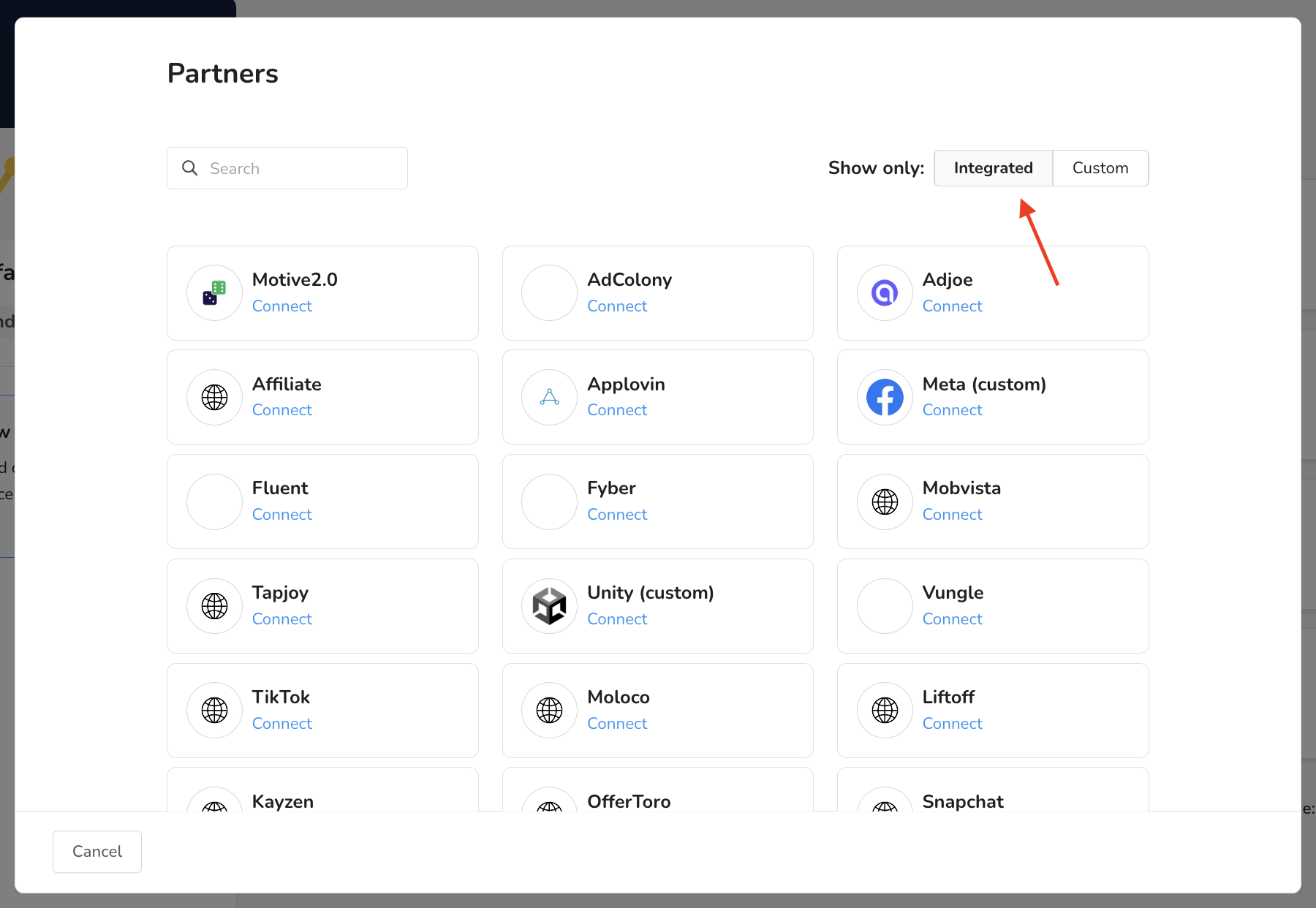
In the wizard:
- Filter partners by Integrated
- Select the partner you want to use
- Complete the required configuration steps
- Click Connect
Integrated partners require minimal setup and are recommended for first-time use.
2. Generate a tracking URL
In the App Menu, click Advertising > Campaigns.
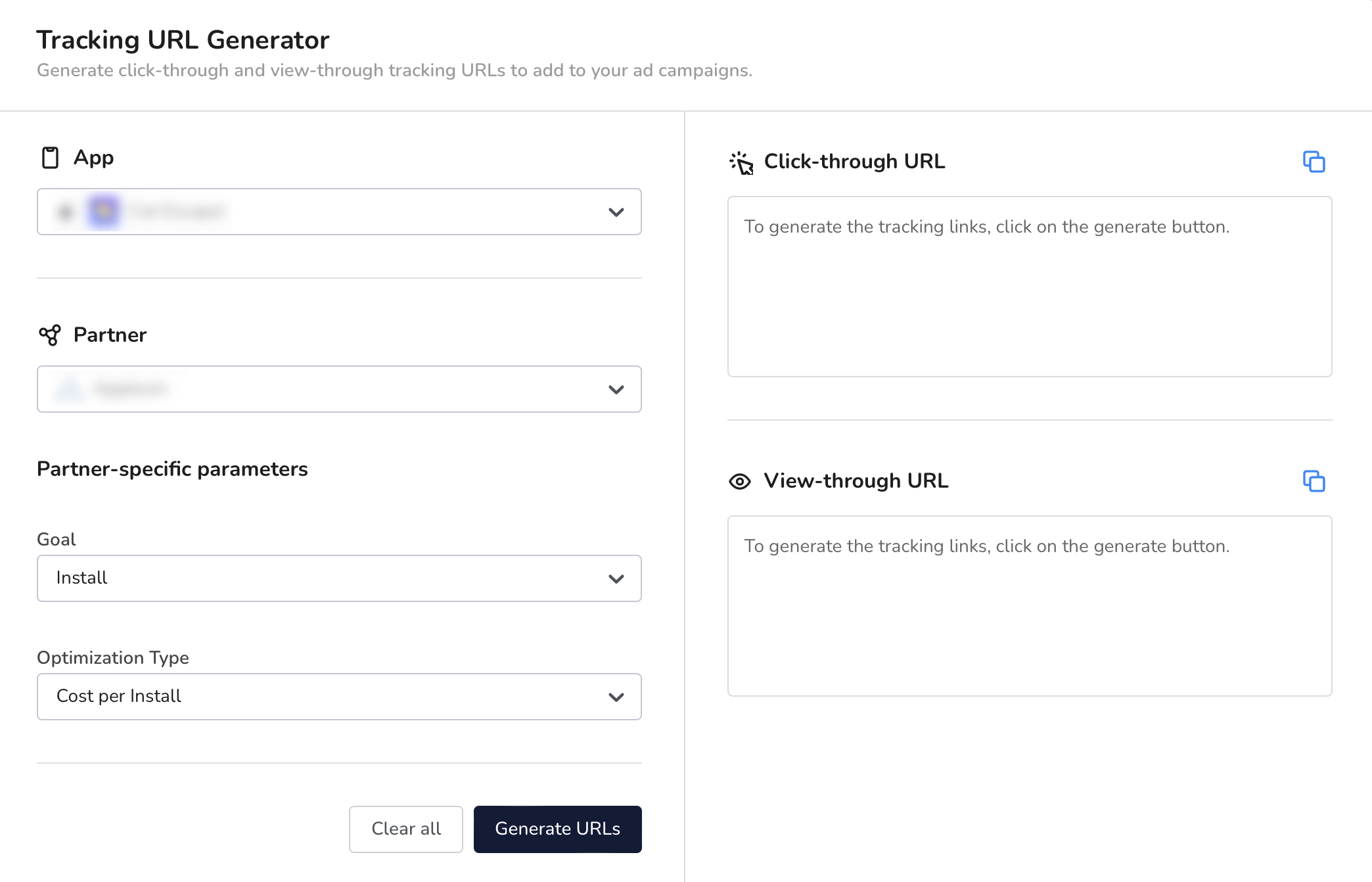
Click Generate tracking URL.

Select:
- The connected partner
For some partners, additional parameters may be required.
Click Generate URLs to create:
- Click-through tracking URL
- View-through tracking URL
3. Add the tracking URL to your campaign
Copy the generated tracking URL and paste it into your campaign setup in the ad partner platform.
Launch the campaign once the URL is added.
4. Verify campaign tracking
After the campaign starts:
- Trigger a test install if possible
- Allow some time for data to be processed
You’re done when
- The campaign appears in the campaign list
- Installs or events are attributed to the campaign
- Data is visible in the Statistics page
At this point, campaign tracking is active.
Next step
👉 Review campaign performance
Use the Statistics page to analyze installs, events, and performance by campaign.