Creating an Experiment
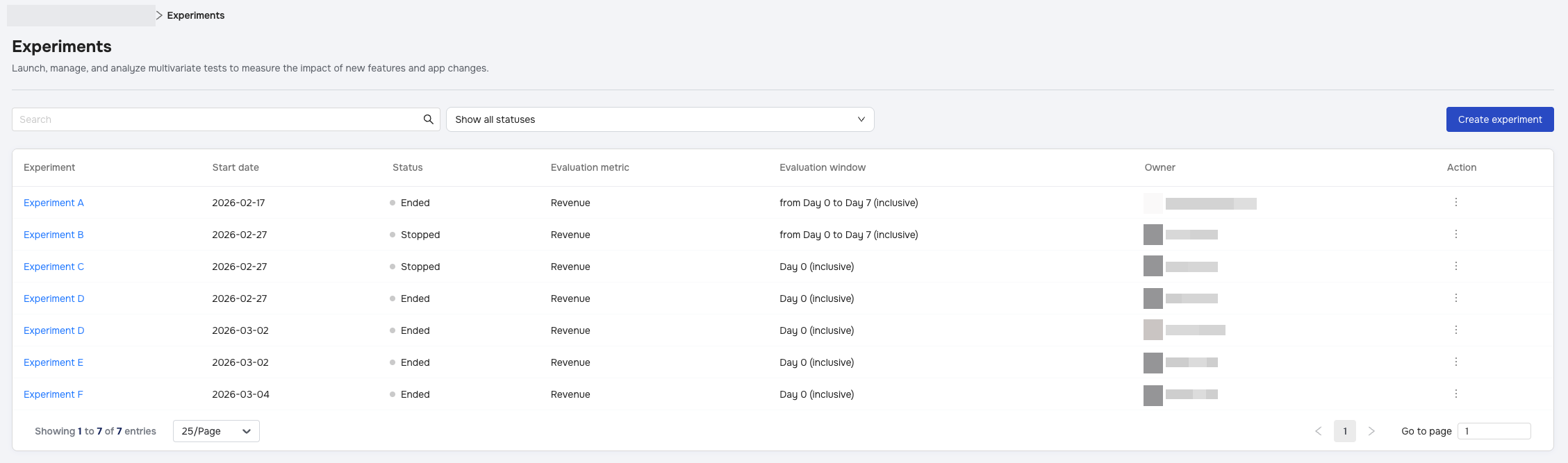
The Create experiment wizard guides you through setting up a robust A/B test. To begin, click the Create experiment button in the top right corner of the Experiments page.
Step 1: Define your experiment
Establish the core identity of your test.
- Name: Give your experiment a unique descriptive name.
- Hypothesis: (Optional) Document what you expect to happen with a maximum of 150 characters (e.g., "Changing the button color will increase conversion").
- Success criteria: Select the Evaluation metric and the Evaluation window. This determines how the "winning" variant is calculated.
- Supported Metrics: You can choose from the following to evaluate your test:
- Active Users
- Revenue
- Ad Revenue
- IAP Revenue
- Payout
- Paying User Rate
- Purchases
- Refunds
- Sessions
- Time Spend in App
Step 2: Target your audience
Decide who will be part of this test.
- App Version Name: Set an optional filter for a specific App Version Name.
- Target: Currently, experiments support New users only.
- Enrollment rate: Use the slider to determine the percentage of eligible users (1-100%) to include.
- Refine user group: Add optional filters to narrow your audience:
- Country & OS Version: Users matching these filters are assigned to a variant instantly upon install.
- Partner: Users are assigned only after attribution is confirmed.
- Important: Using the Partner filter may cause a delay of up to 2 minutes before enrollment, and "Organic" users cannot be selected for this filter.
Note: Users enrolled in this experiment are mutually exclusive; they cannot be enrolled in other concurrent experiments.
Step 3: Configure your test
Set up your Control group and Variants.
- Config key: Define the parameter you are testing (e.g.,
difficulty_level). This key must be unique among all currently running experiments for the App. You cannot have two active experiments using the same Config key. - Variants:
- Control group: This is your baseline and cannot be deleted.
- Add variant: You can add up to 5 experimental variants.
- Traffic distribution: By default, traffic is split evenly, but you can manually adjust percentages as long as they total 100%.
- Test segmentation: Toggle this ON to analyze performance for specific sub-groups (e.g., Spain vs. Germany). You can create up to 5 test segments.
Step 4: Plan your rollout
Finalize the timeline for your experiment.
- Start date: Choose Start right away or Custom to schedule a future date.
- Delayed Start Logic: If a test cannot start on the set date due to system load, it automatically postpones to the next day. The Evaluation Window and total duration are not affected; the timeline simply shifts forward.
- Duration:
- Minimum enrollment duration: The shortest period the test allows new users to enter (minimum 1 day).
- Maximum duration: The longest period the test will run, capped at 45 days.
- Requirement: Maximum duration must be greater than or equal to the Minimum Enrollment Duration + Evaluation Window.
Once valid, click Create experiment (or Save changes if editing) to finalize.