Experiments Overview & Management
The Experiments feature (A/B testing) allows you to test hypotheses and measure the impact of product changes on user behavior. By comparing different variants against a control group, you can make data-driven decisions to optimize your app's performance.
The Experiments List
In the App Menu, navigate to Experiments
The Experiment List gives you a centralized view of all your tests across different applications within your business unit.
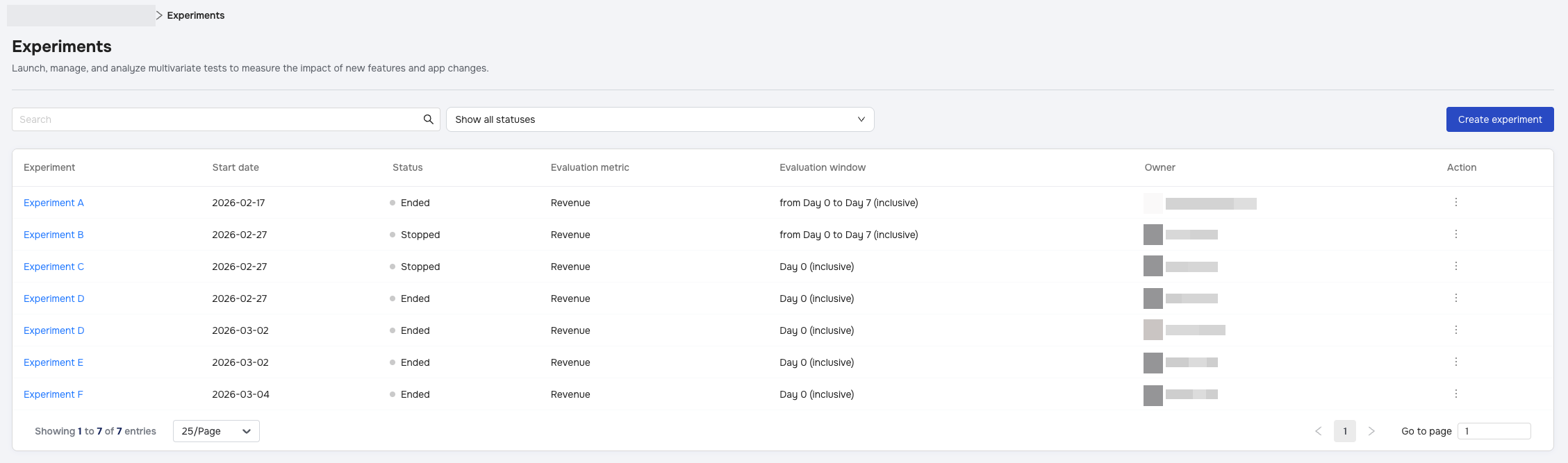
Experiments Table
The table provides a quick overview of your testing landscape:
- Experiment: The name of the test. Clicking this takes you to the results or edit page, depending on the status.
- Start date: When the experiment went live or is scheduled to begin.
- Status: The current state of the experiment.
- Evaluation metric: The primary KPI being measured (e.g., Net Profit, ARPAU).
- Evaluation window: The specific time period used to measure results (e.g., Day 0 to Day 7).
- Owner: The team member who created the experiment.
You can sort the list by clicking on any column header (except "Action") to organize by name, date, or status.
Experiment Statuses
Understanding the status of your experiment is crucial for management:
| Status | Color Indicator | Definition | Actions Available |
|---|---|---|---|
| Scheduled | Yellow/Orange | The experiment is set to start at a future date. | Edit or Delete |
| Live | Green | The experiment is currently active and collecting data. | View or Stop |
| Ended | Gray | The experiment completed its full duration naturally. | View Results |
| Stopped | Gray | A user manually stopped the experiment before the end date. | View Results |
| Aborted | Gray | The system (justtrack) stopped the experiment due to operational issues. | View Results |
Managing Experiments
You can perform actions on specific experiments using the Action menu (three dots) on the right side of the list row.
- Edit a Test: You can only edit experiments that are Scheduled. Once a test is Live, it cannot be modified to ensure data integrity.
- Stop a Test: You can manually stop a Live experiment at any time. Once an experiment is stopped, it cannot be resumed.
- Delete a Test: You can only delete experiments that are Scheduled. Live or concluded experiments are retained for historical data.
- Concurrent Experiment Limits: To ensure data integrity, you cannot run two Live experiments on the same App that utilize the same Config Key. You must wait for one to finish before starting another with the same key.